Ever felt your computer slowing down or your phone freezing at the worst moment? A simple system check could be the game-changer you need. It’s not just for techies—it’s essential for anyone relying on digital devices daily.
What Is a System Check and Why It Matters

A system check is a comprehensive evaluation of your device’s hardware, software, and overall performance. Whether it’s a PC, smartphone, or server, running a system check helps identify potential issues before they escalate into costly failures. Think of it as a digital health check-up—preventive, proactive, and powerful.

Defining System Check in Modern Tech
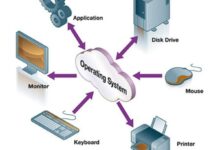
In today’s fast-paced digital world, a system check refers to the process of verifying that all components of a computing system are functioning correctly. This includes checking CPU usage, memory allocation, disk health, network connectivity, and software integrity. According to Microsoft’s support documentation, regular system checks are crucial for maintaining optimal performance and security.
- Verifies hardware functionality
- Ensures software compatibility
- Identifies security vulnerabilities
Common Scenarios Requiring a System Check
There are several everyday situations where performing a system check is not just recommended—it’s essential. For instance, before installing major software updates, after a system crash, or when noticing unusual behavior like slow boot times or frequent crashes.
- Before upgrading operating systems
- After malware or virus detection
- Prior to critical work or presentations
“A system check isn’t just troubleshooting—it’s digital hygiene.” — TechRadar, 2023
The 7 Essential Steps of a Complete System Check
Conducting a thorough system check doesn’t have to be overwhelming. By following these seven structured steps, you can ensure your device runs smoothly, securely, and efficiently. Each step builds on the previous one, creating a holistic view of your system’s health.
Step 1: Assess Hardware Health
The foundation of any system check is evaluating the physical components. This includes checking the CPU temperature, RAM integrity, hard drive or SSD health, and power supply stability. Tools like CrystalDiskInfo for disk monitoring or HWMonitor for temperature readings are invaluable.
- Monitor CPU and GPU temperatures
- Run memory diagnostics (e.g., Windows Memory Diagnostic)
- Check for disk bad sectors or S.M.A.R.T. warnings
Step 2: Evaluate Software and OS Integrity
Software issues often mimic hardware failures. A corrupted system file or missing update can cause crashes and slowdowns. Running built-in tools like sfc /scannow on Windows or diskutil verifyVolume on macOS helps detect and repair file system errors.
- Scan for corrupted system files
- Verify OS version and patch level
- Check for orphaned or duplicate files
Step 3: Analyze Performance Metrics
Performance analysis involves monitoring real-time resource usage. Use Task Manager (Windows), Activity Monitor (macOS), or top/htop (Linux) to identify processes consuming excessive CPU, memory, or disk I/O. High resource usage over time can indicate background malware or inefficient applications.
- Identify resource-hogging applications
- Monitor startup programs
- Check for abnormal network activity
System Check for Different Devices: PC, Mac, Mobile
Not all system checks are created equal. The process varies significantly depending on the device type. Each platform has its own tools, quirks, and best practices. Understanding these differences ensures you perform an effective system check regardless of your device.
Windows PC: Built-in Tools and Third-Party Apps
Windows offers a robust suite of diagnostic tools. The Windows Defender Security Center provides antivirus scans, firewall status, and device performance insights. Additionally, the Performance Monitor and Reliability Monitor offer deep dives into system stability over time.
- Use
msconfigto manage startup items - Run DISM (Deployment Image Servicing and Management) for OS repair
- Leverage PowerShell for advanced diagnostics
For more advanced users, third-party tools like Malwarebytes or CCleaner can enhance the system check by detecting hidden threats and cleaning junk files.
MacOS: Apple Diagnostics and Console Logs
Apple devices come with built-in diagnostics. To run a system check on a Mac, restart and hold D to launch Apple Diagnostics. This tool checks RAM, logic board, battery, and storage. For deeper analysis, the Console app reveals system logs, kernel messages, and error reports.
- Check S.M.A.R.T. status via Disk Utility
- Review login items in System Settings
- Use Activity Monitor to detect energy-draining apps
Mobile Devices: Android and iOS System Checks
Smartphones also require regular system checks. On Android, use Settings > Battery & Device Care to monitor performance, storage, and security. iOS users can access Settings > General > iPhone Storage to see app usage and optimize space.
- Clear cache and temporary files
- Update apps and OS regularly
- Check for unauthorized app permissions
“Your phone is a mini-computer—treat it with the same care.” — Wired, 2022
Automated vs. Manual System Check: Pros and Cons
When it comes to performing a system check, you have two main approaches: automated tools or manual inspection. Each has its strengths and weaknesses, and the best strategy often involves a combination of both.
Benefits of Automated System Check Tools
Automated tools save time and reduce human error. Software like NirSoft’s utilities or Windows’ own troubleshooters can scan, detect, and sometimes fix issues without user intervention. They’re ideal for routine maintenance and non-technical users.
- Fast and consistent results
- User-friendly interfaces
- Scheduled scanning capabilities
Limits of Automation: When Manual Checks Win
Automation isn’t foolproof. Some issues—like misconfigured network settings or subtle hardware degradation—require human intuition. Manual system checks allow for deeper investigation, such as reviewing log files line by line or testing hardware under load.
- Greater control over diagnostic depth
- Ability to interpret ambiguous error messages
- Necessary for complex or unique system configurations
Common System Check Errors and How to Fix Them
Even with the best tools, system checks can reveal errors. Knowing how to interpret and resolve these is key to maintaining system health. Here are some of the most frequent issues encountered during a system check.
Disk Errors and Bad Sectors
One of the most common findings in a system check is disk errors. These can range from minor file system corruption to physical bad sectors on the drive. Use CHKDSK on Windows or First Aid in Disk Utility on Mac to repair logical errors.
- Run CHKDSK /f /r to fix and recover bad sectors
- Back up data immediately if S.M.A.R.T. status is failing
- Consider SSD replacement if wear leveling is maxed out
High Memory Usage and Leaks
If your system check shows consistently high RAM usage, it could indicate a memory leak—where an application fails to release memory after use. This can slow down or crash your system over time.
- Restart the system to clear temporary leaks
- Update or reinstall problematic applications
- Use Resource Monitor to track memory trends
Overheating and Thermal Throttling
During a system check, monitoring temperature is crucial. Overheating can cause thermal throttling, reducing CPU performance to prevent damage. Dust buildup, failing fans, or poor ventilation are common culprits.
- Clean internal fans and vents
- Reapply thermal paste on CPUs/GPUs
- Use cooling pads for laptops
Best Practices for Regular System Check Maintenance
Like changing the oil in your car, regular system checks prevent bigger problems down the road. Establishing a maintenance routine ensures your devices remain fast, secure, and reliable over time.
Create a System Check Schedule
Consistency is key. Set a schedule based on usage: weekly for power users, monthly for casual ones. Use calendar reminders or automation tools to stay on track.
- Weekly: Quick scan and update check
- Monthly: Full hardware and software audit
- Quarterly: Deep clean and backup verification
Use Trusted Tools and Keep Them Updated
Always use reputable software for your system check. Outdated tools may miss new threats or misdiagnose issues. Regularly update your antivirus, disk utilities, and OS to ensure compatibility and accuracy.
- Stick to well-known developers (e.g., Microsoft, Apple, Malwarebytes)
- Avoid pirated or cracked diagnostic tools
- Verify digital signatures before installation
Document Your System Check Results
Keeping a log of your system check findings helps track trends over time. Note down temperatures, disk health, and any errors. This documentation is invaluable for diagnosing recurring issues or proving system health for warranty claims.
- Save screenshots of diagnostic results
- Use spreadsheets to track performance metrics
- Archive logs for future reference
Advanced System Check: For IT Pros and Power Users
For system administrators and advanced users, a basic system check isn’t enough. They need deeper insights, automation, and remote monitoring capabilities. This level of system check involves scripting, network diagnostics, and enterprise-grade tools.
Remote System Checks Using PowerShell and SSH
PowerShell on Windows and SSH on Linux/macOS allow IT professionals to perform system checks on remote machines. Scripts can automate tasks like checking disk space, service status, or update compliance across hundreds of devices.
- Use
Get-Serviceto monitor critical services - Run
df -hvia SSH to check disk usage - Automate reports with cron jobs or Task Scheduler
Network and Server System Checks
In enterprise environments, system checks extend beyond individual devices. Network health, server uptime, and firewall rules must be verified. Tools like Nagios, Zabbix, or PRTG provide real-time monitoring and alerts.
- Monitor bandwidth usage and latency
- Check for open ports and unauthorized access
- Verify backup and replication status
Scripting Automated System Check Routines
Advanced users can write scripts to perform recurring system checks. For example, a Bash script on Linux can check CPU load, memory, and disk space, then email the report. On Windows, a batch file or PowerShell script can do the same.
- Use
toporvmstatin scripts for performance data - Integrate with email or Slack for alerts
- Log results to a central server for analysis
Future of System Check: AI and Predictive Diagnostics
The future of system check is not just reactive—it’s predictive. With advancements in artificial intelligence and machine learning, systems can now anticipate failures before they happen. This shift is transforming how we maintain digital devices.
AI-Powered System Monitoring Tools
Modern tools like Microsoft’s Azure Monitor or Google’s Operations Suite use AI to analyze system behavior and predict anomalies. These platforms learn normal usage patterns and flag deviations, such as a sudden spike in disk I/O that could indicate a failing drive.
- AI detects subtle performance drifts
- Reduces false positives in error reporting
- Enables proactive maintenance scheduling
Predictive Maintenance in Consumer Devices
Even consumer devices are adopting predictive diagnostics. Apple’s iOS now warns users when a battery is degrading, and some laptops alert users about fan health. These features are early examples of AI-driven system checks becoming mainstream.
- Smartphones predict battery lifespan
- Laptops monitor thermal history
- Cloud services suggest optimization steps
“The next generation of system check won’t just find problems—it’ll prevent them.” — MIT Technology Review, 2023
What is a system check?
A system check is a diagnostic process that evaluates the health, performance, and security of a computing device, including hardware, software, and network components. It helps identify and resolve issues before they cause major failures.
How often should I perform a system check?
For most users, a basic system check should be done monthly. Power users or those in critical environments may benefit from weekly checks. Servers and enterprise systems often require daily monitoring.
Can a system check fix my slow computer?
Yes, a system check can identify the root causes of slowness—such as high CPU usage, low disk space, or malware—and guide you toward solutions like cleaning junk files, upgrading hardware, or removing malicious software.
Do I need special software for a system check?
Not necessarily. Most operating systems include built-in tools for basic system checks. However, third-party software can provide deeper insights and automation for more advanced diagnostics.
Is a system check the same as a virus scan?
No. While a virus scan focuses on detecting malware, a system check is broader, covering hardware health, software integrity, performance, and security. A virus scan is just one component of a full system check.
Performing a regular system check is one of the most effective ways to extend the life of your devices and ensure smooth, secure operation. From basic user checks to advanced IT diagnostics, the principles remain the same: monitor, analyze, and act. As technology evolves, so too will the tools and methods for system checks, with AI and automation leading the charge toward predictive maintenance. Whether you’re a casual user or a system administrator, making system checks a habit is a small step that yields massive rewards in reliability and peace of mind.
Further Reading: